Connecting a Bluetooth Device | Bose SoundLink Plus Portable Speaker
bose-soundlink-plus-portable-speaker
Bose SoundLink Plus Portable SpeakerSold from 2025

Connecting a Bluetooth Device | Bose SoundLink Plus Portable Speaker

Use the product controls to automatically connect to a device you've paired before.

Automatic Connection

When you turn on the speaker, it will try to connect to the last two devices it was paired with.

  • The devices must be turned on and within 30 feet (9 meters).
  • Bluetooth must be enabled on those devices.
  • If multi-point connection is turned off, the speaker will only reconnect to the most recent device.

Reconnect to Another Device

Using the Bose App

If Multipoint is enabled, the easiest way to switch between paired devices is through the Bose app.

  1. Open the Bose app and select your product.
  2. Go to Source.
  3. You’ll see a list of your paired devices.
  4. Turn on the device you want to connect to.

Note: If two devices are already connected, first disconnect the device that is not currently running the Bose app. Then connect the device you want to use.

Using your mobile device's Bluetooth settings

If multipoint is not enabled, or you do not have the Bose app available:

  1. Open the Bluetooth settings on the device you want to connect.
  2. Find your Bose product in the list of paired devices.
  3. Select the product to connect.

Note: If two devices are already connected, connecting from a third paired device will replace the oldest active connection.

Which device would you like to connect to?

Smartphone or tablet

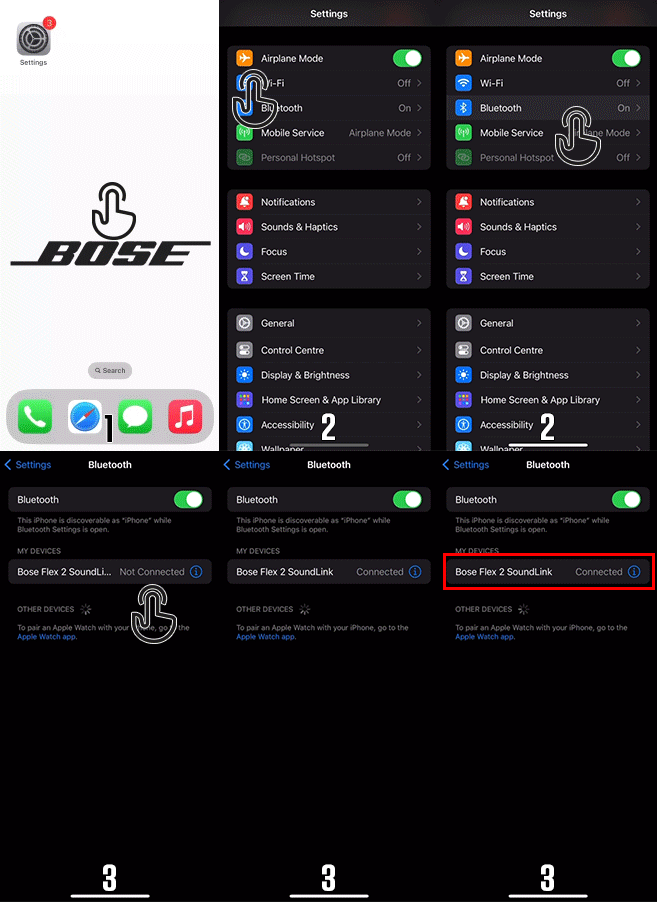
Connect your speaker to a previously paired smartphone

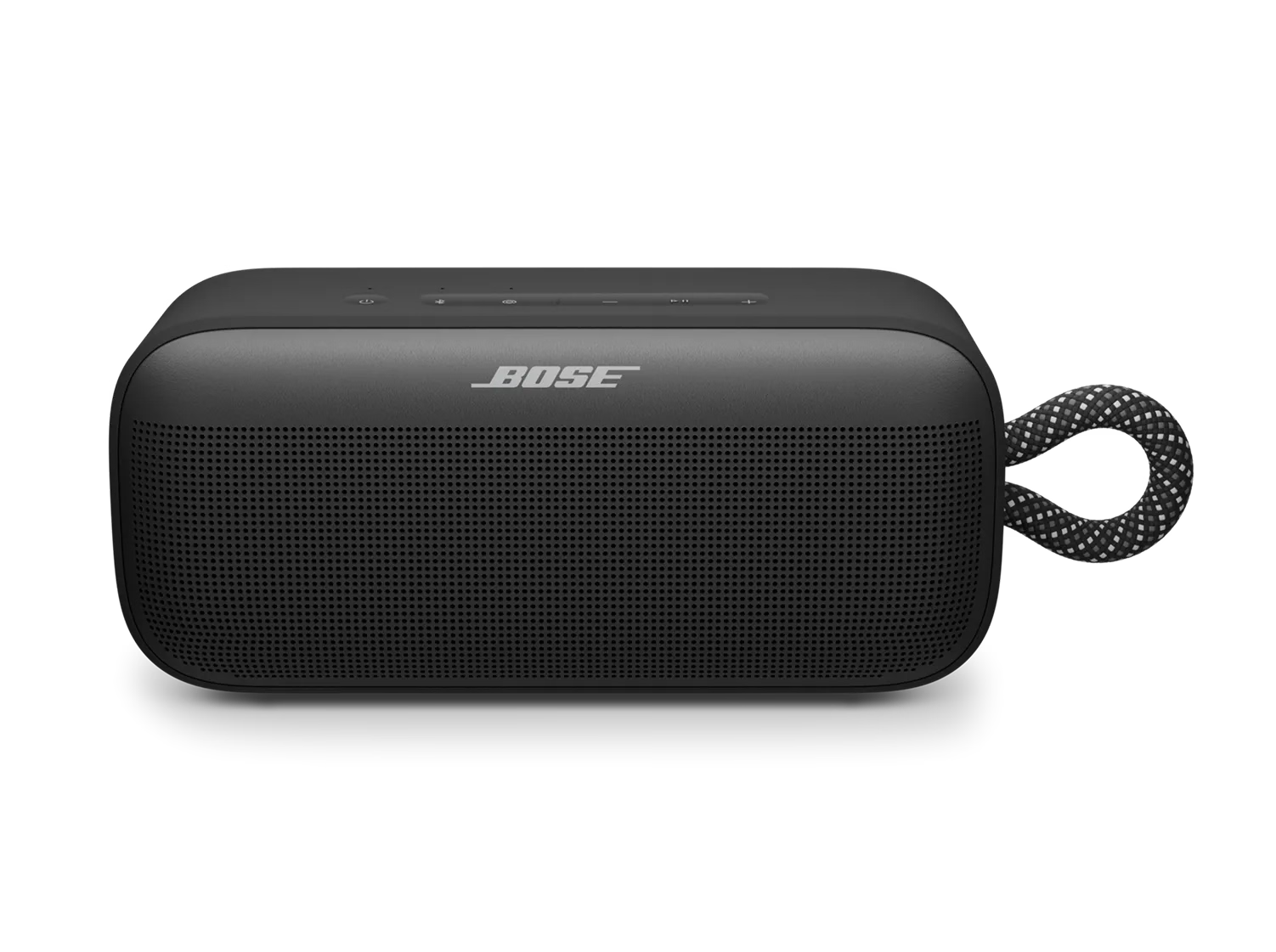
Note: The image may show a different speaker, but the process is the same.


  1. Press the power icon button to turn on your Bose speaker.
  2. Open Bluetooth Settings on your smartphone:
    • For iPhone: Go to Settings > Bluetooth and make sure Bluetooth is turned on.
    • For Android: Swipe down from the top of the screen to access Quick Settings, then tap on the Bluetooth icon, or go to Settings > Connections > Bluetooth.
  3. In the Bluetooth settings, you’ll see a list of devices you’ve previously paired with. Look for your Bose speaker’s name in the list of Paired Devices.
  4. Once you find your Bose speaker, simply tap its name. Your phone will establish a connection, and you should hear a confirmation tone from the speaker. The Bluetooth indicator will stop blinking and stay solid.
  5. Enjoy Your Music! Now you can play music, podcasts, or any audio from your phone through your Bose Bluetooth speaker.

If this is your first time pairing the speaker to a device, scroll down and select 'No' from the options further down the page.
Computer

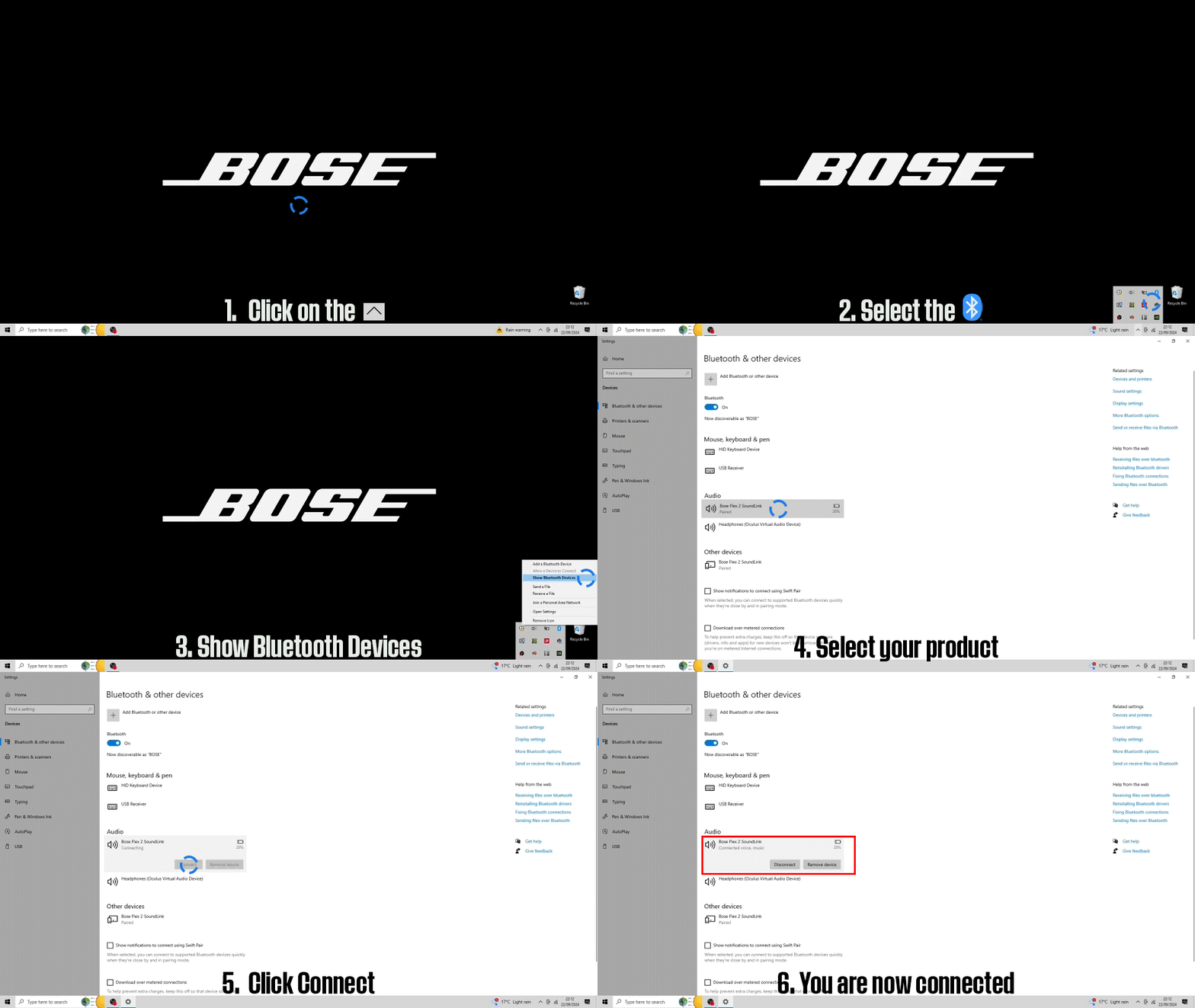
Connect your speaker to a previously paired computer

Note: The image may show a different speaker, but the process is the same.


  1. Press the power icon button on your speaker to turn it on.
  2. Go to your Bluetooth device settings:
    • Windows: Click the upward arrow in the system tray (bottom-right corner) to reveal hidden icons. Click the Bluetooth icon and select Show Bluetooth Devices.
    • Mac: Go to the Apple menu, open System Preferences, and select Bluetooth.
  3. Reconnect your Bluetooth speaker:
    • Windows: In the Bluetooth & other devices section, find and click on your speaker's name, then select Connect. If you have multiple devices, you may need to scroll down to the Paired devices list to locate it.
    • Mac: In the Bluetooth settings, find your speaker's name and click Connect. If you have multiple devices listed, scroll to locate your speaker. Note: You may also need to adjust your Mac's sound input and output settings to use the speaker.
  4. Verify the connection:
    • You’ll hear a sound from the speaker or see the Bluetooth light become solid, confirming it is connected.

If this is your first time pairing the speaker to a device, scroll down and select 'No' from the options further down the page.
TV

Connect your speaker to a previously paired TV

Please note that these are general steps for TV Bluetooth settings. For more specific guidance, refer to your TV brand's owner’s manual or visit their support website.


  1. Power on your Bose Bluetooth speaker by pressing the power icon button
  2. Access TV's Bluetooth Settings
    • Turn on your TV.
    • Navigate to the TV's settings menu, typically by pressing the "Menu" button on your TV remote.
    • Look for "Bluetooth" or "Audio" settings. If your TV has Bluetooth, this option will be listed.
  3. Connect the devices
    • Under the Bluetooth settings, locate and select the speaker's name.
    • Wait for the connection process to complete. Once connected, your TV will confirm the connection, and the sound will start playing through your Bose speaker.

If this is your first time pairing the speaker to a device, scroll down and select 'No' from the options further down the page.